
The quote emails
Which emails QuoteLane sends and when, who gets them, and where to change their wording, recipients and look.
Real WooCommerce emails
QuoteLane’s emails are WooCommerce emails. They use the same logo, colours and footer as your order emails, and they are listed in WooCommerce → Settings → Emails with names starting Quote:. There you set each one’s subject, heading, recipients, and whether it is on or off.
WooCommerce → Settings → Quotes → Emails lists them too, with who gets each one, a Preview and a link to its settings.
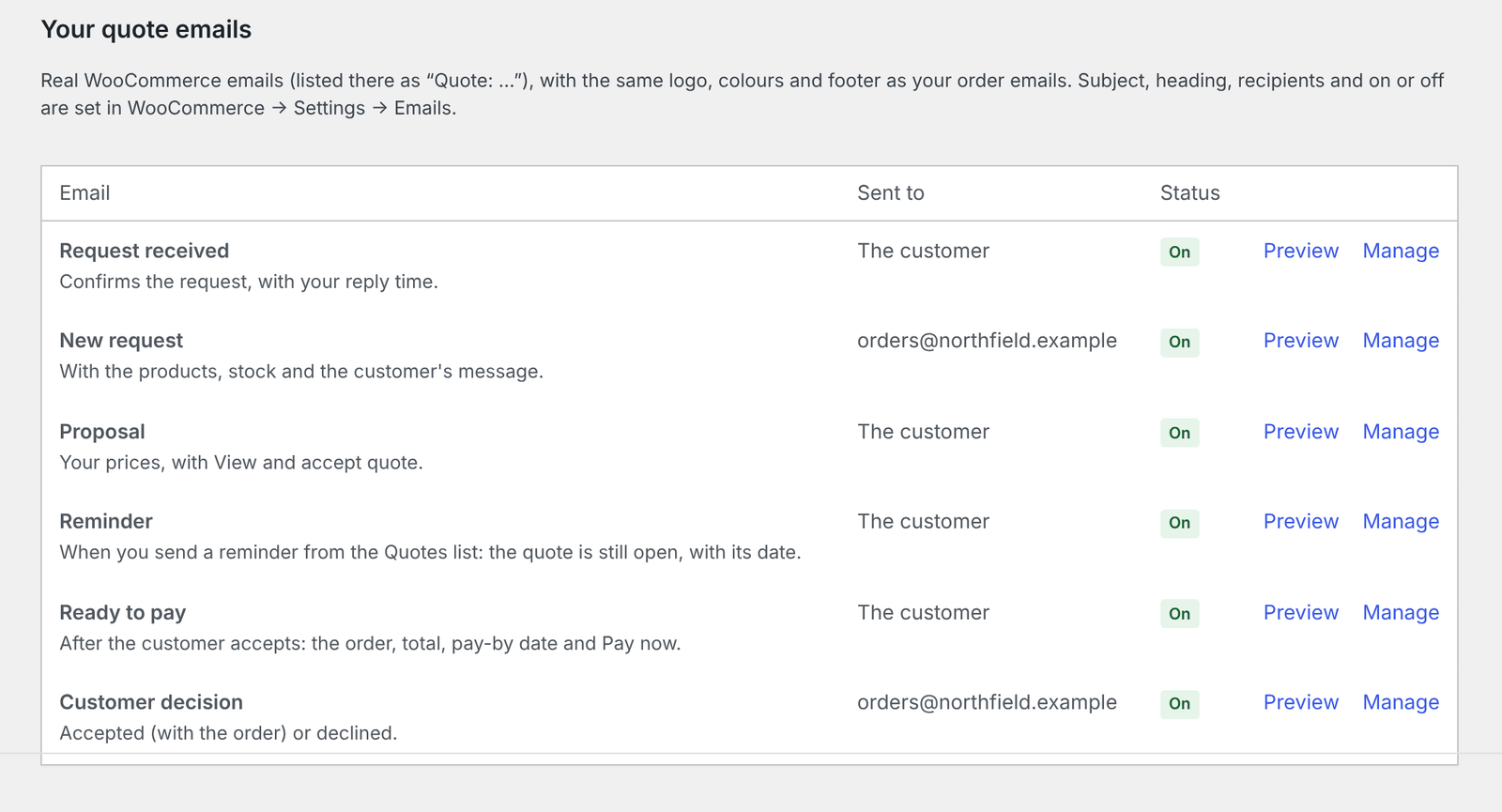
The emails
| Goes to | When | |
|---|---|---|
| Quote: new request | You | A customer sends a request. With the products, stock and the customer’s message. |
| Quote: request received | Customer | Right after they send it. Confirms the request, with your reply time if you set one. |
| Quote: proposal | Customer | You click Send proposal or Send again. Your prices, with a button to view and accept. |
| Quote: reminder | Customer | You send a reminder from the Quotes list (or QuoteLane Pro sends one). The quote is still open, with its end date. |
| Quote: ready to pay | Customer | After they accept: the order, total, pay-by date and Pay now. |
| Quote: customer decision | You | The customer accepts (with the order) or declines. |
The emails that go to you are sent to the Administration Email Address from Settings → General. To send them to a colleague or a sales inbox as well, open the email in WooCommerce’s email settings and add the addresses under Recipient(s), separated by commas.
Pro QuoteLane Pro adds three: payment reminder (customer), order still unpaid (you) and customer viewed it (you).
Reply straight to the customer
When you reply to an email that went to you, your answer goes to the customer, like with WooCommerce’s new-order email.
Your reply time
Under Request received email, Reply time shown to customers adds a promise to the confirmation, for example “usually within one working day”. Leave it empty to make no promise.
Logo
The emails show the logo set in WooCommerce’s email settings. Without one, your shop name appears as text. WooCommerce uses one logo for all shop emails, so your order emails get it too.
Placeholders
In subjects and headings you can use WooCommerce’s {site_title} and these:
{quote_id}: the quote number{customer_name}and{customer_first_name}{order_number}: in emails about an order
Language
Emails are sent in your shop’s language, as set under Settings → General → Site Language. See Languages and translation.
Change the email layout
For changes beyond subject and heading, copy a template into your theme. See Hooks and templates for developers.
Emails not arriving?
Most of the time, this is about how your site sends email, not QuoteLane. See Emails not arriving.