
Price a request and send the proposal
The quote editor box by box: set prices and discounts, add shipping and fees, write a message, choose the end date and send.
Open the request
Go to WooCommerce → Quotes and click the quote, or its Price it button. The editor has these boxes:
- Customer: name, company, email, phone, address, whether they have an account, and their message.
- Items and prices: the products and your prices.
- Message to the customer: shown above the prices.
- Proposal: the end date and the buttons to send.
- Customer link: how the customer opens the quote.
- Activity: everything that happened, plus internal notes.
Set your prices
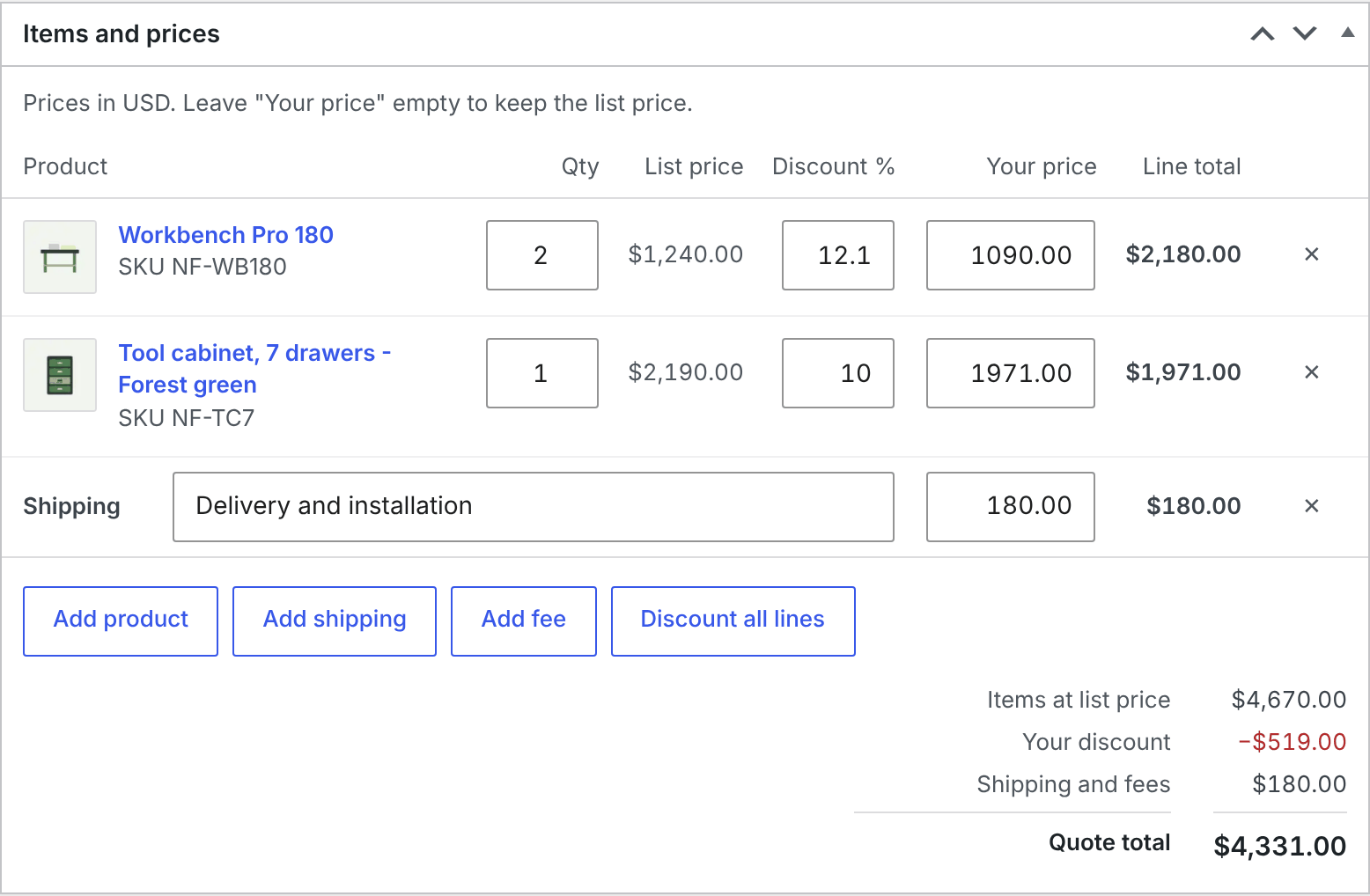
Each product line has Qty, List price, Discount %, Your price and Line total.
- Type Your price for the unit price you offer, or a Discount % on the list price. Leave both empty and the list price stays.
- Change Qty, or remove a line with its ✕.
- Discount all lines sets the same discount on every product line. You can still change single lines afterwards.
- Add product opens a search: type part of a product’s name or its SKU, and pick it. For a product with options, pick the variation.
When tax is on in WooCommerce, the prices you type are without tax. Tax is added the same way as on the order, using your tax settings.
A line shows Out of stock when the product is, and, for products where WooCommerce manages stock, how many are in stock or On backorder. Quote requests don’t change stock.
Shipping and fees
- Add shipping adds a shipping line with a description and an amount, for example “Delivery to your address, 1 pallet”.
- Add fee adds a fee line, for example “Set-up or engraving”.
Both go onto the order as they are. QuoteLane never adds shipping by itself, so the customer pays exactly the total they accepted.
The totals
Under the lines you see Items at list price, Your discount, Shipping and fees and the Quote total. They update as you type.
Message to the customer
Write anything the customer should read with the prices: delivery time, conditions, a friendly word. It appears above the prices in the proposal email and on the quote page.
Send it
In the Proposal box:
- Check Valid until. Left empty, the quote is valid for your default number of days from sending (14 unless you changed it under Request form).
- Click Preview the email. It opens in a new tab and shows exactly what the customer gets. Nothing is sent or saved.
- Click Send proposal.
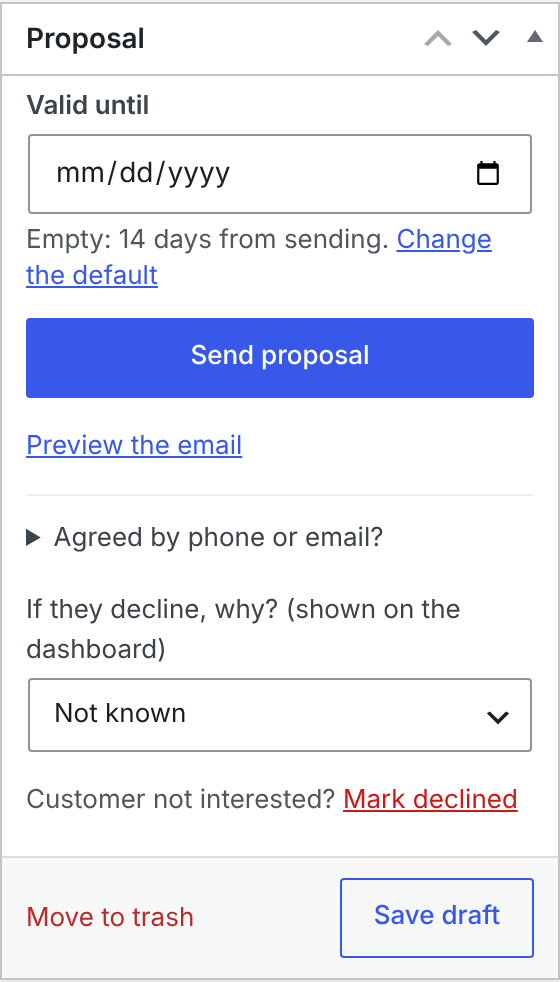
Not ready yet? Save draft keeps your work without sending anything.
Change a quote you already sent
You can keep editing after sending. The customer goes on seeing, and can accept, the version you sent. The editor shows that there are unsent changes. Click Send again to send the new version.
Other actions
- Agreed by phone or email? Create order now makes a pending order at the prices shown, without waiting for the customer to accept online.
- Customer not interested? Mark declined closes the quote.
- Reopen quote, on a declined quote, makes it editable again so you can send a new proposal.
- Revise and send again appears when the order from a quote didn’t go through (cancelled, refunded, failed or deleted). It reopens the quote for editing. An order from it that is still unpaid is cancelled.
- Move to trash removes the quote. It stays in the trash until you empty it.
An expired quote stays editable: set a new Valid until date and click Send again.
Activity and internal notes
The Activity box lists every step: the request, emails sent (and any that couldn’t be sent), changes, the customer’s answer and the order. Add an internal note there for your team; customers never see it.