
Revenue dashboard
Win rate, accepted value by month, response times, why quotes were lost and what is open right now, with a CSV export.
Open it
Go to WooCommerce → Quotes dashboard, just below Quotes in the menu. Pick a period at the top: This month, 3 months, 12 months or All time.
The numbers come from the quotes themselves, so they match the Quotes list. Test quotes are left out, and amounts are without tax. The dashboard is worked out in the background and kept for an hour, so it shows when it was last worked out.
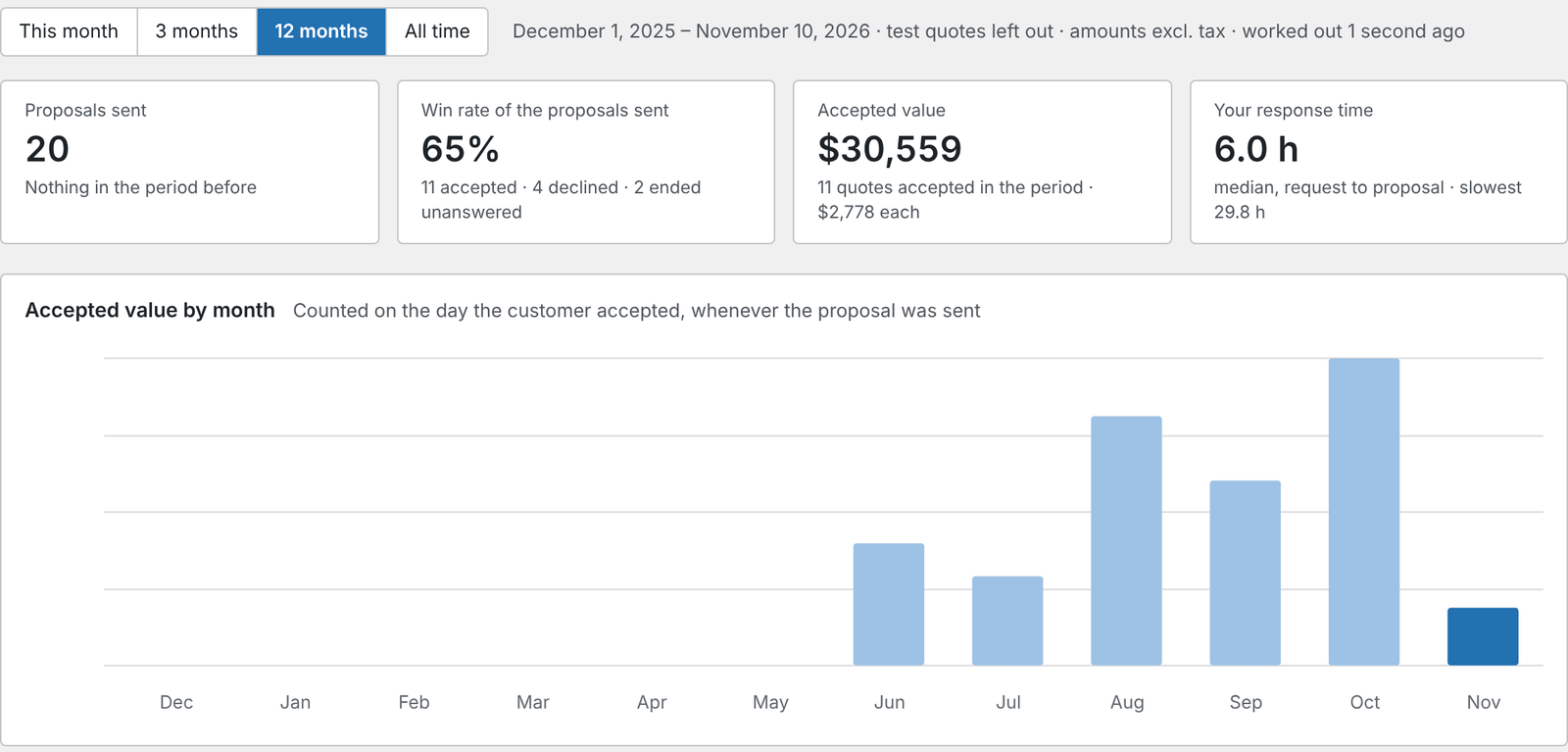
Key numbers
- Proposals sent in the period.
- Win rate: of the proposals sent, how many were accepted, declined or ended without an answer. An order that was cancelled, refunded or failed after acceptance doesn’t count as won.
- Accepted value: what customers accepted, counted on the day they accepted.
- Your response time: the median time from request to your proposal, and the slowest one.
Each shows the change on the period before.
The charts and lists
- Accepted value by month.
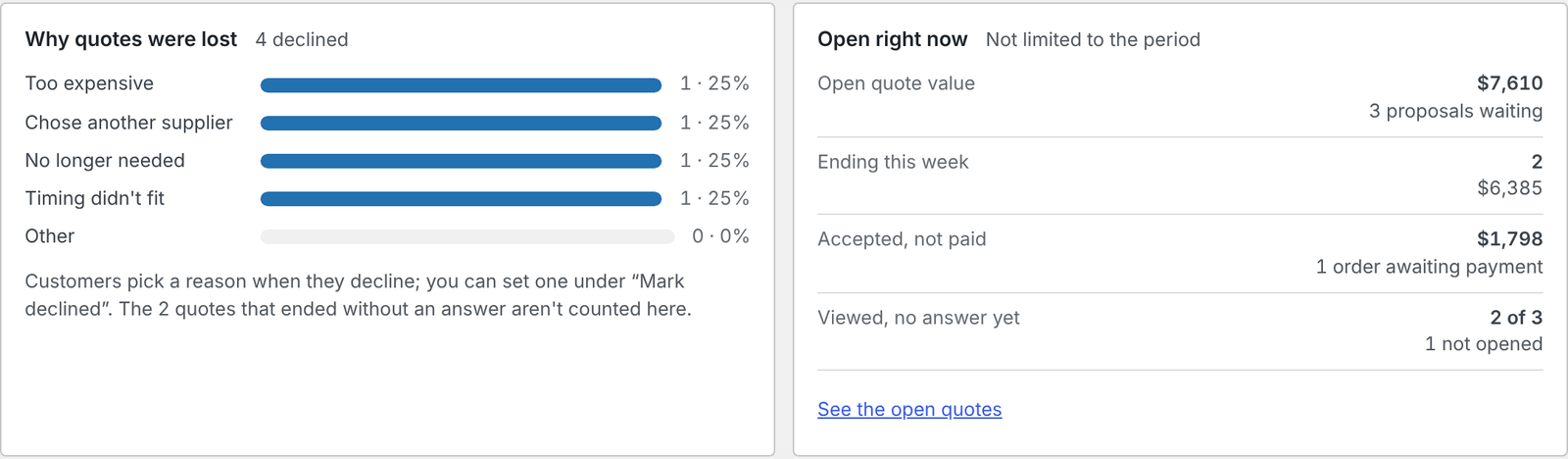
- Why quotes were lost: the reasons customers gave when they declined (see below).
- Open right now, whatever the period: quotes ending this week, accepted but not paid, and viewed with no answer yet.
- How fast things move: request to your proposal, proposal to the customer’s answer, and accepted to paid.
- Won after a follow-up: quotes accepted after an automatic reminder.
- Most quoted products, by accepted value.
Export this period as CSV downloads the numbers for the period you picked.
The Quotes list tile
With Pro, the fourth tile on the Quotes list shows the Open quote value, the value of all proposals waiting for an answer, with your win rate.
Lost reasons
Under WooCommerce → Settings → Quotes → Pro → Revenue dashboard, Ask customers why when they decline a quote is on by default. When a customer clicks Decline, they can pick a reason and add a note, both optional:
- Too expensive
- Chose another supplier
- No longer needed
- Timing didn’t fit
- Other
When you decline a quote yourself with Mark declined, you can set the reason there.