
The Quotes list
The overview at the top of the list, the next-step buttons, reminders, copies, expiring quotes, CSV export and test requests.
Where to find it
All quotes are under WooCommerce → Quotes. Users with the Quote Manager role find Quotes as its own menu item. The number next to Quotes in the menu counts the requests waiting for your reply.
The overview
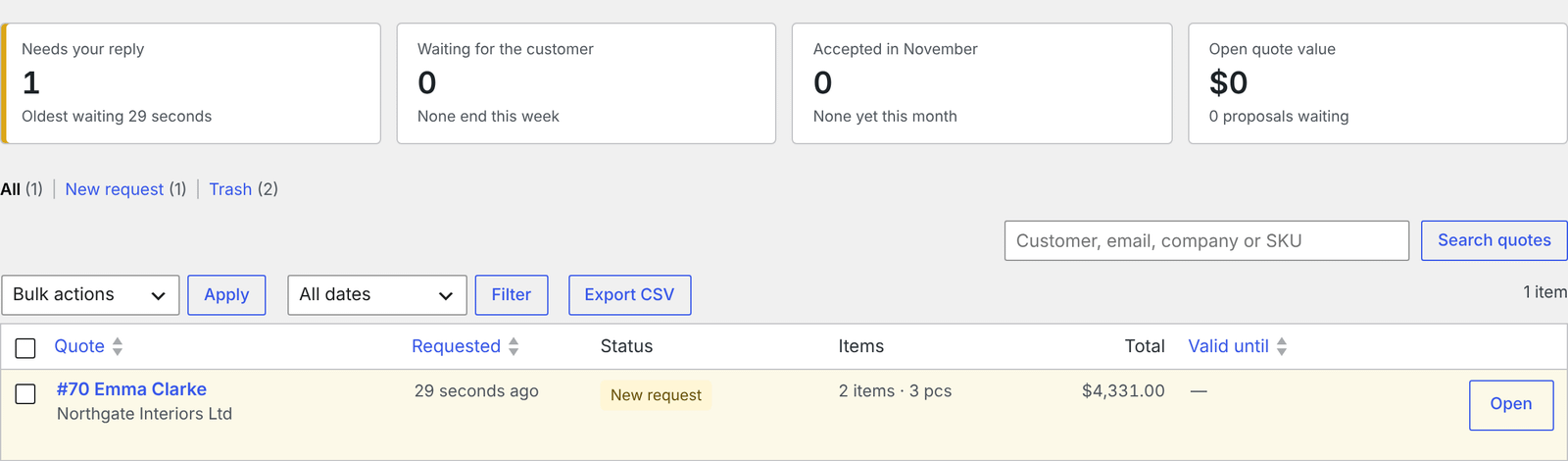
Four tiles at the top show what needs doing. Click a tile to see those quotes.
- Needs your reply: new requests, with how long the oldest has waited.
- Waiting for the customer: proposals you sent, with how many end this week.
- Accepted in (this month): quotes accepted this month, with their value and how many are paid.
- Ending this week: proposals that end in the next 7 days, soonest first.
Test requests are left out of the counts.
Pro With QuoteLane Pro, the fourth tile shows the value of all open quotes instead. See Revenue dashboard.
The list
Each row shows the quote number and customer, when it was requested, the status, the number of products, the total, Valid until and a Next step button. The button changes with the quote:
| Status | Next step |
|---|---|
| New request, not priced | Price it |
| Proposal sent, ending within 3 days | Send reminder |
| Accepted, order not created | Create order |
| Converted to order | The order number, to open it |
| Declined | Duplicate |
| Expired | Reopen |
Otherwise it reads Open.
Above the list you can filter by status, and search by customer, email, company or SKU.
Send a reminder
Send reminder emails the customer that the quote is still open, with its end date. To remind several customers at once, tick the quotes and choose Send reminder under Bulk actions. Reminders go only to sent proposals, and at most one an hour per quote. After a reminder, the row’s button shows Open again for a day.
Pro QuoteLane Pro sends reminders by itself. See Automatic follow-ups.
Copy a quote
Duplicate, under a quote’s name, makes a copy with the same customer, products and prices. Check it and send it when ready; nothing is emailed when you copy.
End quotes early
Tick sent proposals and choose Mark as expired under Bulk actions. The customer can no longer accept them.
Export to a spreadsheet
Export CSV downloads the quotes in the current view, or all quotes. Choose:
- One row for each quote: number, status, dates, customer details, number of products, total, order and payment.
- One row for each product in a quote: each product with SKU, options, quantity, list price, your price and line total. Shipping and fees get a row each.
Choose the spreadsheet you use: Excel in German, French or Italian needs semicolons; Google Sheets, Numbers and Excel in English use commas. Amounts are plain numbers with the currency in its own column, so they add up. The file holds customer details, so keep it safe.
Try it with a test request
While there are no quotes yet, the list offers Send a test request. It creates a quote marked Test, using one of your published simple products, and sends the same emails as a real request: New request to you, and Request received to your own address. Test quotes are left out of the overview.
Let a colleague handle quotes
QuoteLane adds a Quote Manager user role. It can see and work on quotes but has no access to the rest of WooCommerce, such as orders and settings. Give it to someone under Users.