
Elementor widgets and conditions
Four QuoteLane widgets with Elementor’s own style controls, three dynamic tags, and display conditions for Elementor Pro.
What you need
- Elementor 3.5 or newer (tested with Elementor 4.3 and Elementor Pro 4.3). The widgets and dynamic tags work with Elementor’s free version.
- Elementor Pro only for the display conditions and for Theme Builder templates (Single Product, Loop items, headers), where the widgets are most useful.
The widgets are in a QuoteLane category of the Elementor panel. They print the same markup as QuoteLane, so your quote rules, texts, form fields and spam protection stay in your Quotes settings.
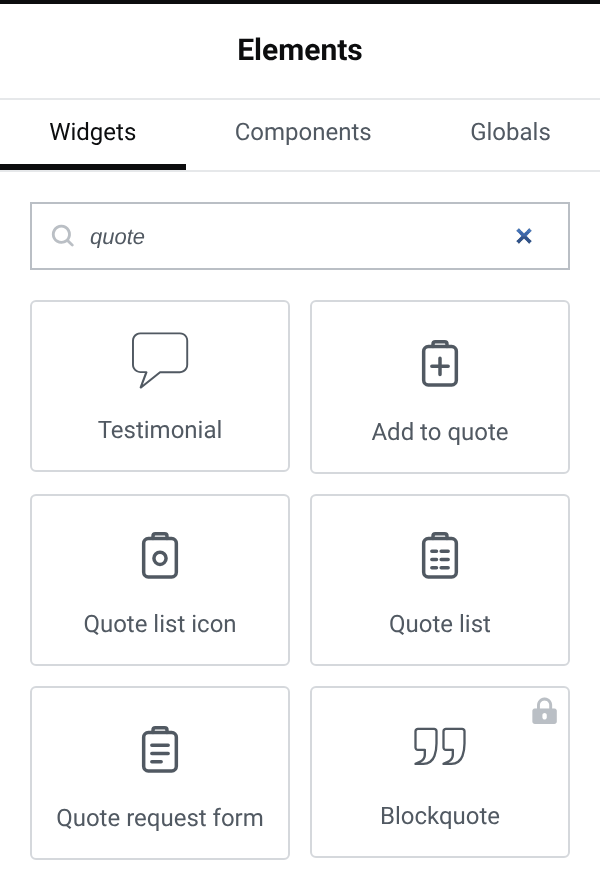
Add to quote
The quote button for one product.
- Product: This product in Single Product templates and Loop items, where the button follows the product it sits in; or Choose a product to place it anywhere else, like a landing page. The list shows your newest 300 products; type a product’s ID for another one.
- Text: leave it empty to use the text from your Quotes settings, so it is the same everywhere and translated.
- Quantity field and an Icon, before or after the text.
- Use the theme’s button style (on by default), so it matches Add to cart. Switch it off to style it with Elementor’s button controls and hover animations.
Your quote rules decide which products can be quoted: where they say no, the widget shows nothing, and in the editor it tells you why. Products with options (colour, size) show Choose options and open their product page.
Quote list icon
For headers. Pick any icon from Elementor’s library to match your cart icon, or leave it empty for QuoteLane’s clipboard icon.
- Label and Show the label: a name next to the icon.
- Show the count: only when the list has products, always, or never.
- Hide everything when empty: as in your Quotes settings, yes or no.
- On click: open the side panel, so shoppers check their list without leaving the page, or go to the quote page.
Quote list
The shopper’s quote list on any page, with editable or read-only quantities, a remove button, and Request a quote. Hide that button when the request form is on the same page. Choose what shows when the list is empty: a short note, or nothing.
Quote request form
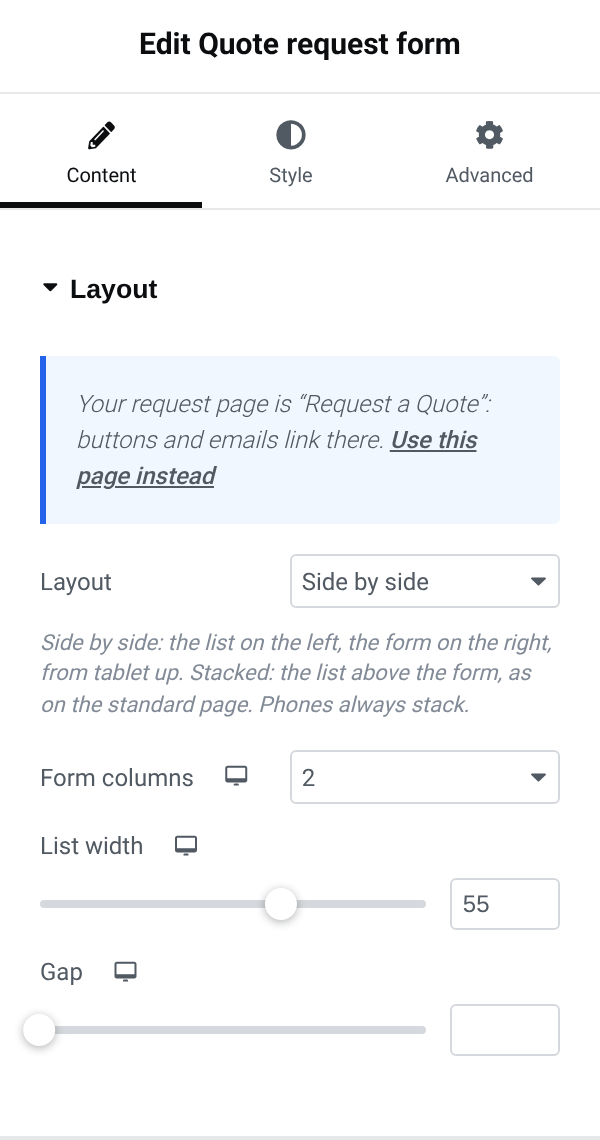
Your request page as a widget.
- Layout: Stacked, the list above the form as on the standard page, or Side by side, the list on the left and the form on the right from tablet width up. Phones always stack.
- Form columns, List width and Gap.
- Style the table, the fields, the button and the messages with Elementor’s controls.
The fields, required details, consent text and button text come from your Quotes settings. In the editor, sample products fill the list so you can style it; shoppers see their own list.
If you build the request page in Elementor, the widget tells you whether this page is your request page. If it isn’t, click Use this page instead: buttons and emails then lead to this page.
Dynamic tags
- Quote list count, in text fields: the number of products, updated live.
- Quote page URL, in link fields: leads to the request page.
- Quote list URL (side panel), in link fields: opens the side panel.
Display conditions (Elementor Pro)
In Elementor Pro’s display conditions (Elementor Pro 3.19 or newer), a QuoteLane group adds:
- Quote list has products / is empty: for example, show a “Your quote list” section only when there is something in it.
- Product can be quoted: yes / no.
- Price on request: the price is hidden / shown.