
Spam protection
The three checks that are always on, when to add a CAPTCHA, how to set up Turnstile or reCAPTCHA, and what to do when real customers are blocked.
Always on
Three checks protect the request form without any setup. Customers don’t notice them.
- Hidden trap field: a field people never see. Most bots fill it in, and their request is refused.
- Too-fast check: a request sent less than 3 seconds after the form appeared is refused.
- Limit per visitor: at most 10 requests an hour from one internet address, and at most 5 a day for one email address.
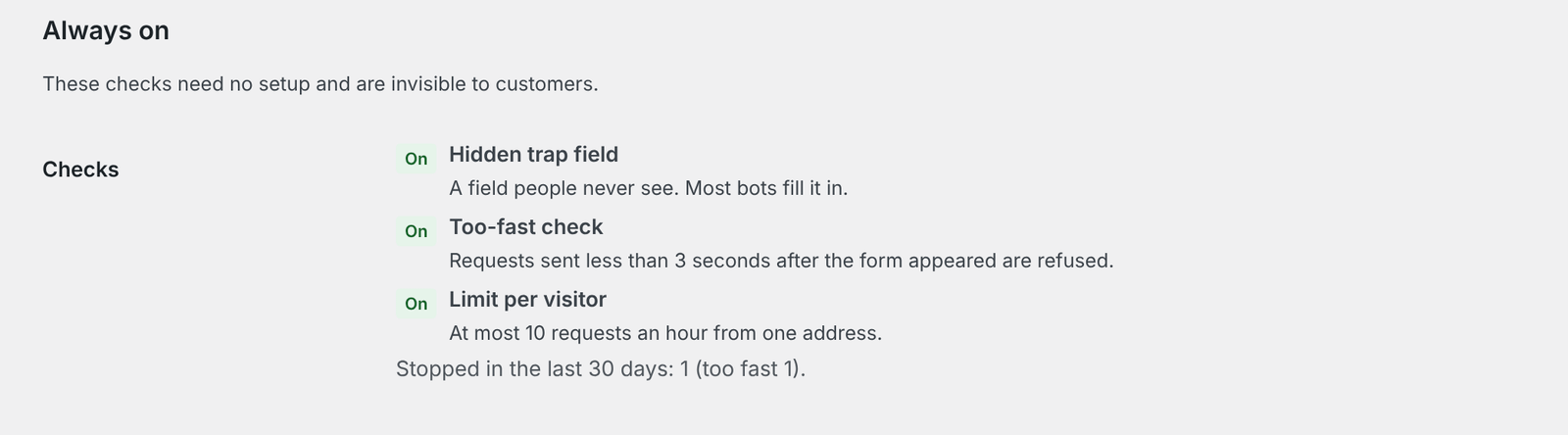
WooCommerce → Settings → Quotes → Spam and privacy shows how many requests each check stopped in the last 30 days.
Add a CAPTCHA
These checks stop most automated spam. If spam still gets through, add an extra check under Extra check (CAPTCHA) → Service:
| Service | What customers see |
|---|---|
| Cloudflare Turnstile (recommended) | Usually nothing. Free, and accessible (WCAG 2.2 AA). |
| Google reCAPTCHA v3 | Nothing: it scores each request in the background. Free up to 10,000 checks a month. |
| Google reCAPTCHA v2 | The “I’m not a robot” checkbox. Same free limit. |
The CAPTCHA is only on the request page. Your site connects to Cloudflare or Google only when you choose one of them.
Set up Cloudflare Turnstile
- In your Cloudflare dashboard, open Turnstile and add a widget. Add your shop’s domain to it.
- Copy the Site key and the Secret key.
- In QuoteLane’s Spam and privacy settings, choose Cloudflare Turnstile, paste both keys and click Test the keys.
- When the test says the keys work, click Save changes.
Set up Google reCAPTCHA
- In the Google reCAPTCHA admin console, create a key. Choose Score based (v3) for v3, or Challenge (v2) with “I’m not a robot” for v2. Add your shop’s domain.
- Copy the Site key and the Secret key.
- Choose the matching reCAPTCHA in QuoteLane, paste both keys, click Test the keys, then Save changes.
Each service keeps its own keys, so you can switch and come back without entering them again.
Who has to pass it
Customers who are logged in skip the CAPTCHA, because they are rarely spam. Anyone can create an account on most shops, though, so a bot could too. If spam comes from accounts, tick Also ask logged-in customers.
If the service is down
Choose what happens when Cloudflare or Google can’t be reached:
- Accept the request and mark it “not checked” (the default): you don’t lose a customer while the service has a problem. The quote’s activity shows the mark.
- Refuse it and ask the customer to try again.
Real customers are blocked
- “The spam check couldn’t load”: an ad blocker or a privacy setting in the customer’s browser blocks Cloudflare’s or Google’s script. They can allow it for your site or use another browser.
- Failures in the settings: under Why the last CAPTCHA checks failed, QuoteLane lists the reasons, for example a key that was refused or a domain that isn’t added to the key.
- Your shop is behind Cloudflare’s proxy: every visitor may seem to come from one of Cloudflare’s addresses and share one limit of 10 an hour. QuoteLane warns you about this in the settings. Ask your host to pass on the visitor’s address, or see the
qlane_client_ipfilter in Hooks and templates for developers.
Privacy
When a CAPTCHA is on, QuoteLane adds a paragraph about it to the privacy policy guide under Settings → Privacy, ready to copy into your policy. See Privacy and personal data.